Expert Vlogging Tips to Elevate Your Content
Reading time approx. 2 minutes
Helpful?
Expert Vlogging Tips to Elevate Your Content
Reading time approx. 2 minutes
Helpful?
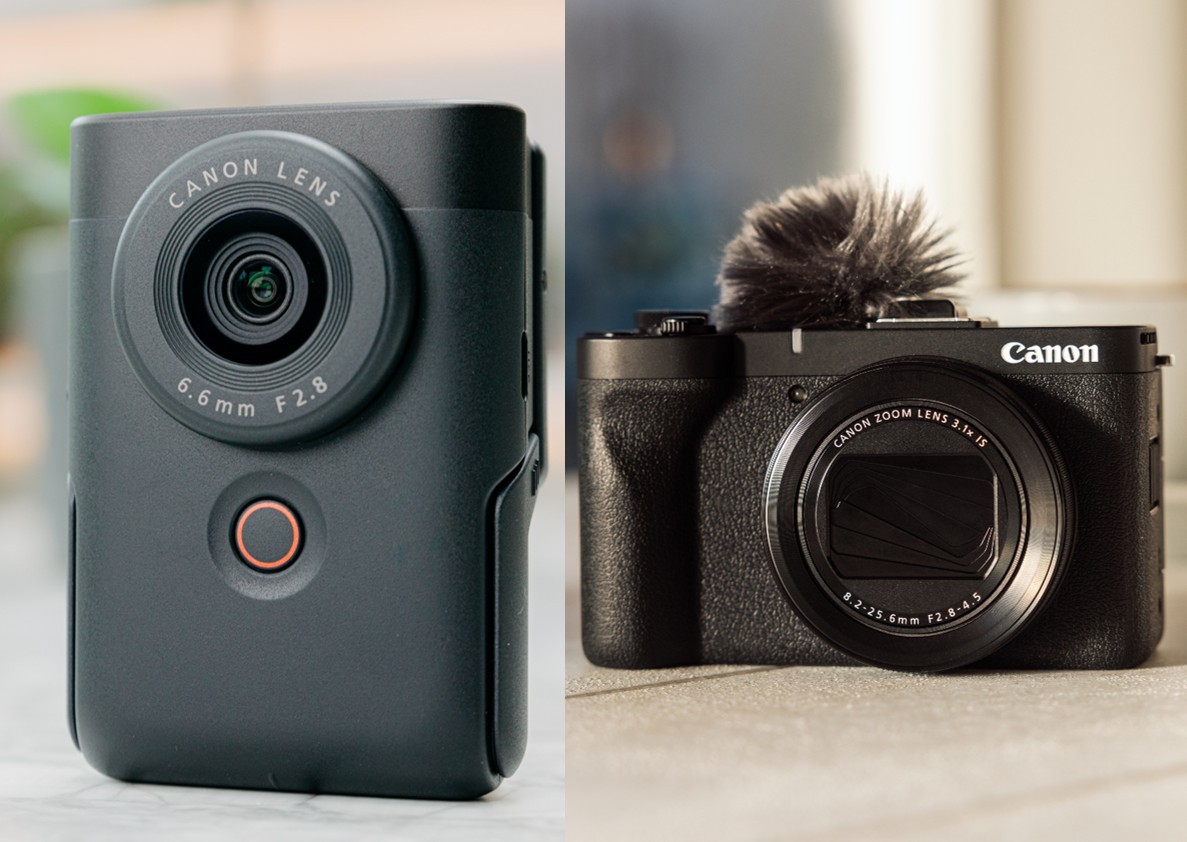
Owning a great camera is only the beginning. Knowing how to use it well is what separates good content from great content. These are the expert tips that will help you get the most from your PowerShot V10 or PowerShot V1 from day one. Whether you own the compact PowerShot V10 or the advanced PowerShot V1, these Canon vlogging camera tips will help you get professional results from day one.
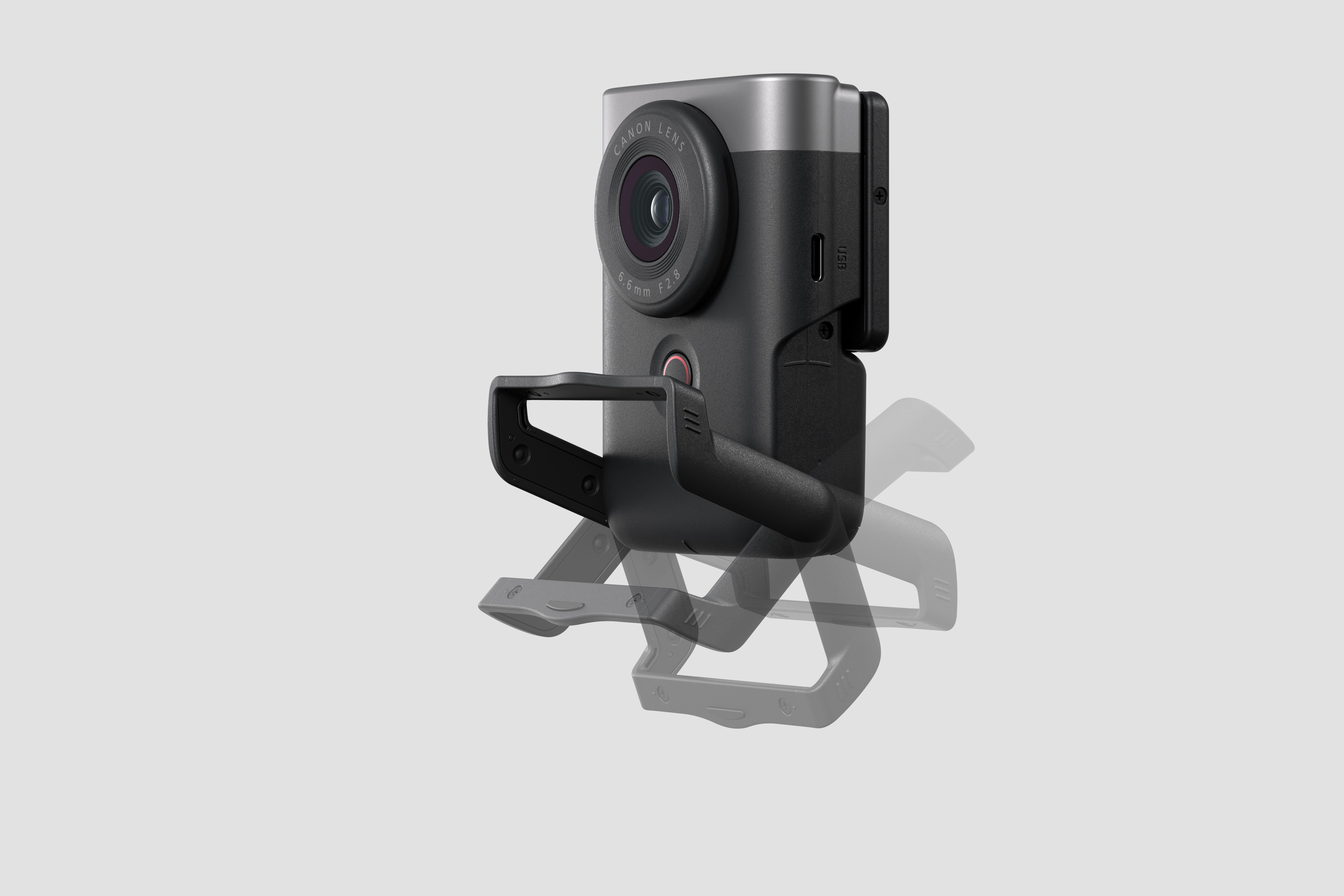
1. Use the Canon PowerShot V10 Built-In Stand — Get the Right Angle Every Time
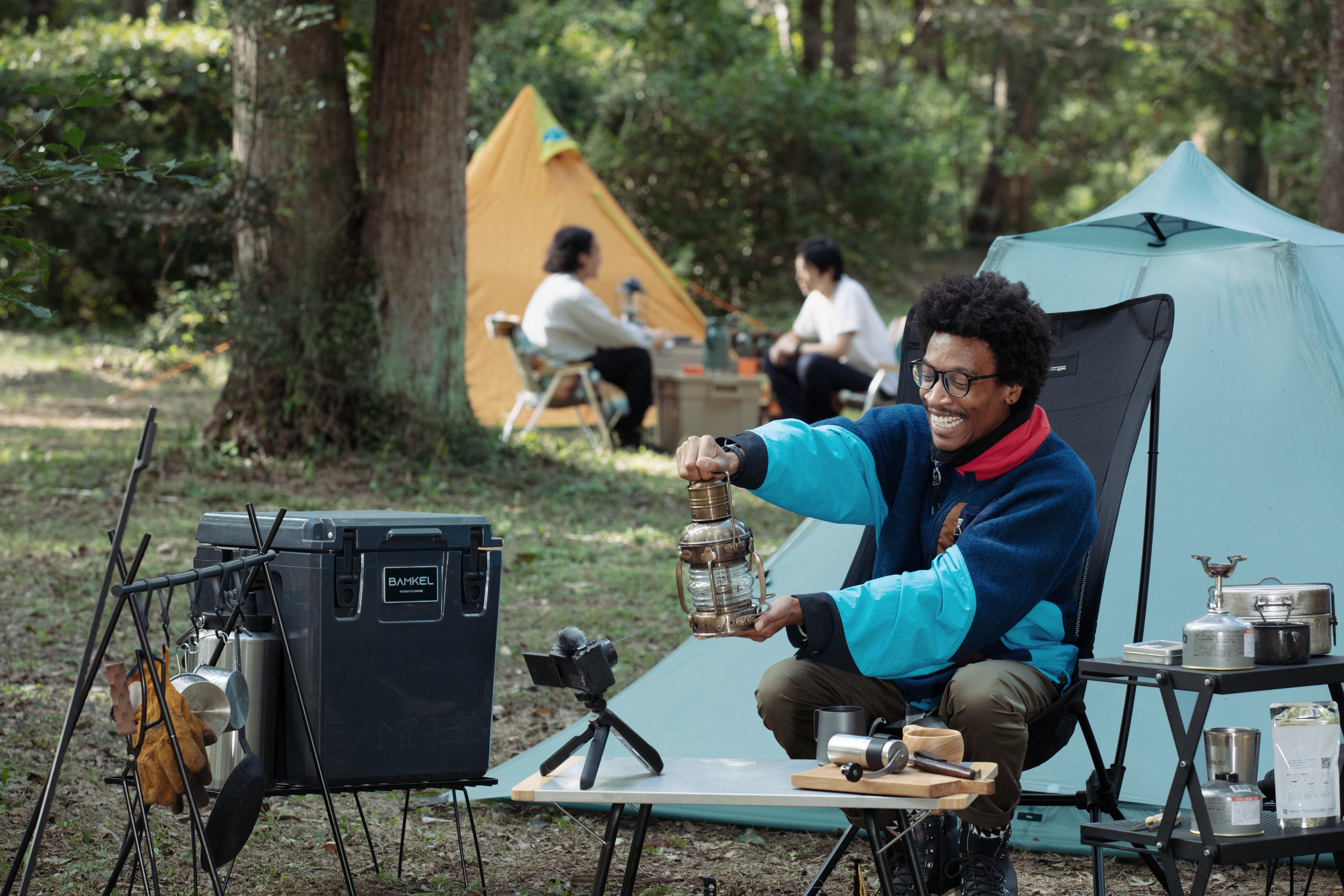
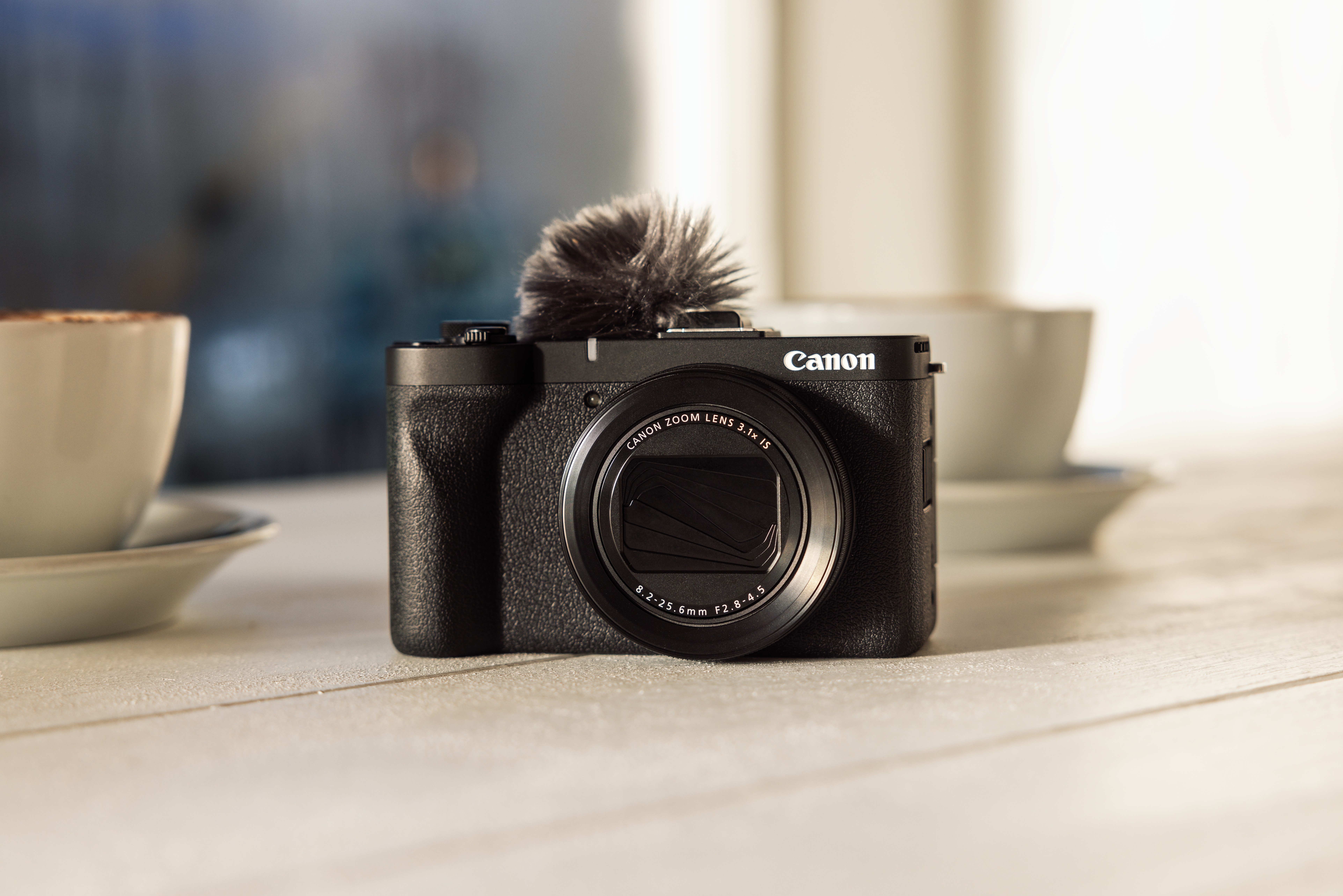
The V10's stand is one of its most underused features. Cafes, hotel ledges, desk edges, bookshelves: any flat surface becomes a setup in seconds. It tilts forward and backward up to 30 degrees in both directions. Combined with the flip screen, tilt it forward for a slightly high angle — universally flattering for talking-to-camera content.
2. Shoot 4K Landscape and Crop to Vertical for Instagram & TikTok
Instead of shooting in vertical mode, shoot in 4K landscape and reframe to 9:16 in your editing software. This gives you both a landscape version and a vertical version from the same clip. One shoot, two formats. It also lets you adjust the crop point if your framing is slightly off.
3. Canon PowerShot V10 Image Stabilisation Modes Explained
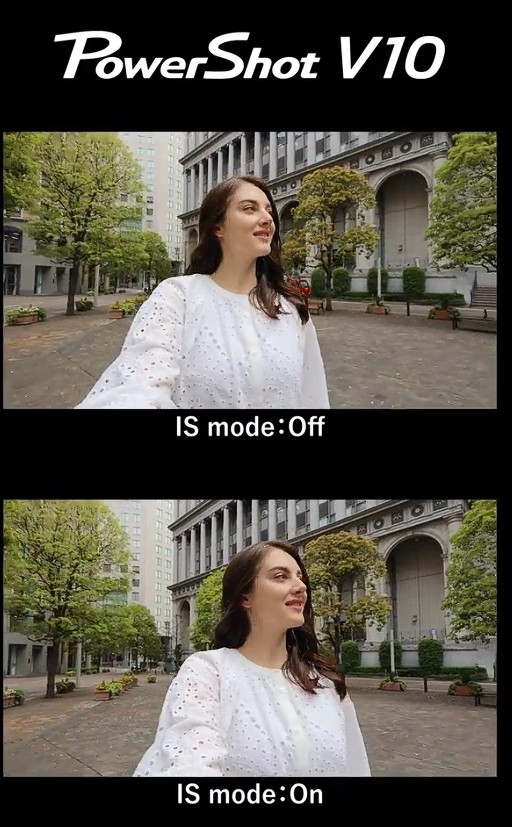
The V10 has three IS modes: Off, On, and Enhanced. Enhanced provides the most stabilization but applies a slight digital crop. For the widest framing, use IS On. Save Enhanced for fast-moving situations. For static stand shots, IS Off gives the cleanest result with no cropping applied.
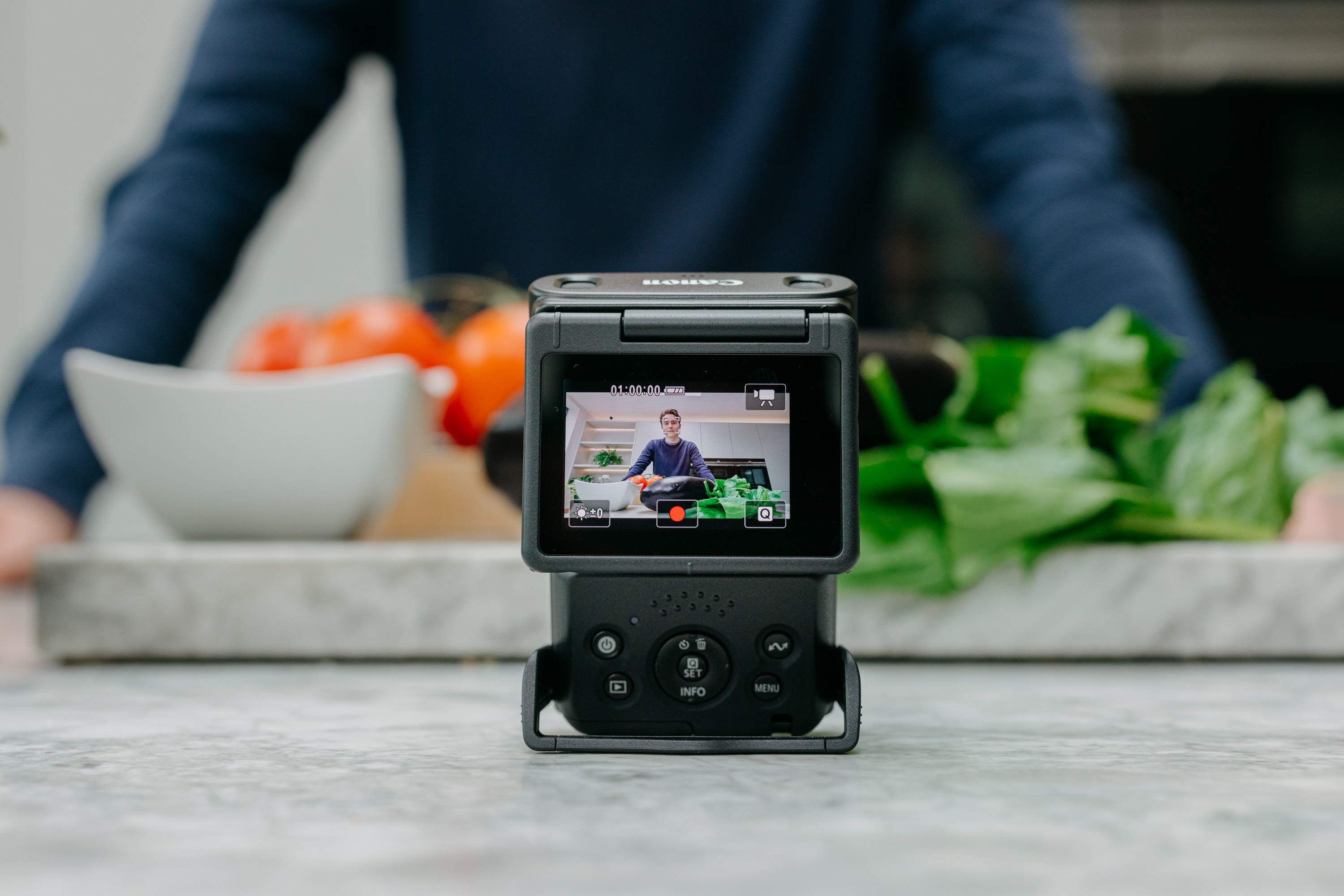
4. Use the Vari-angle touchscreen to frame yourself.
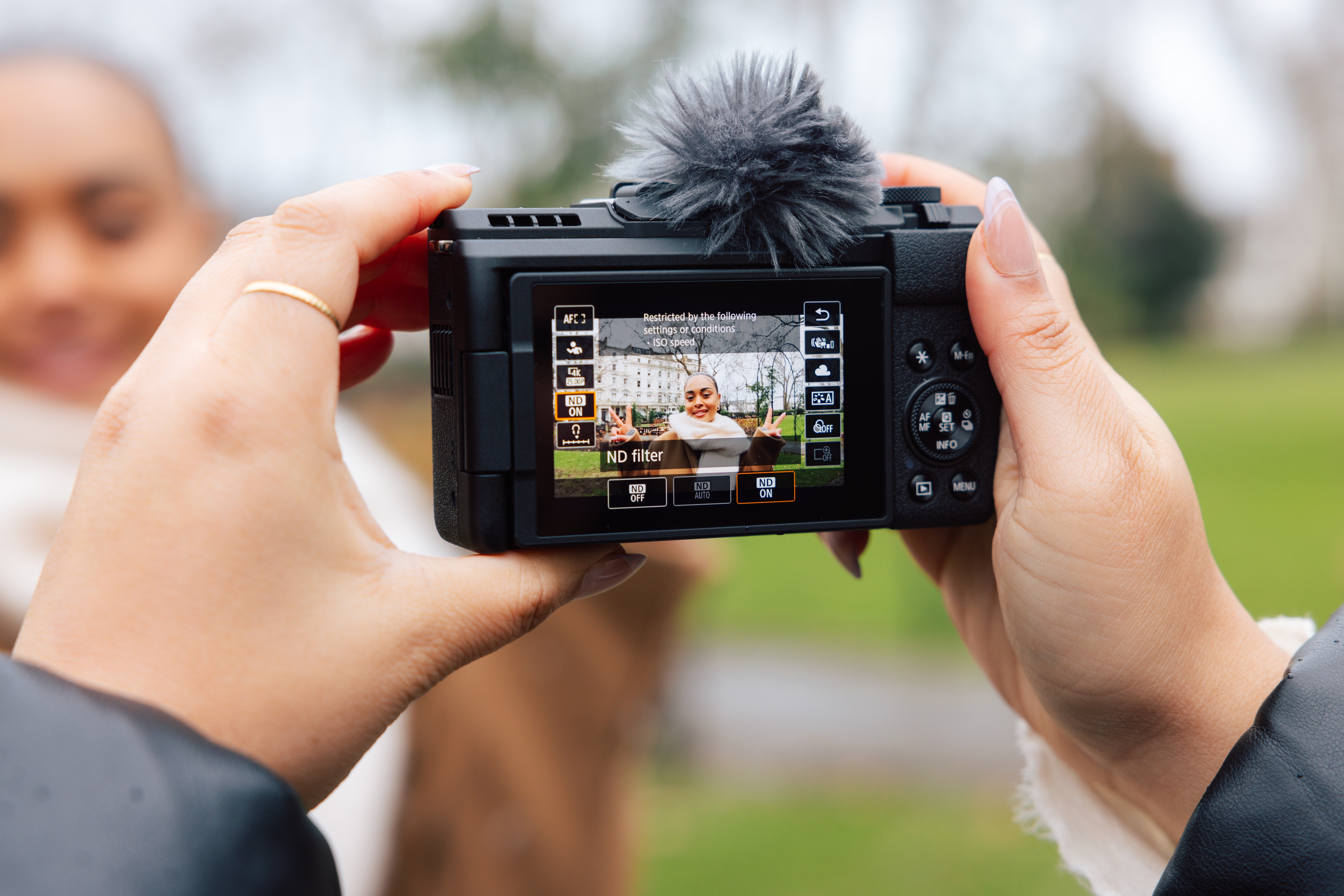
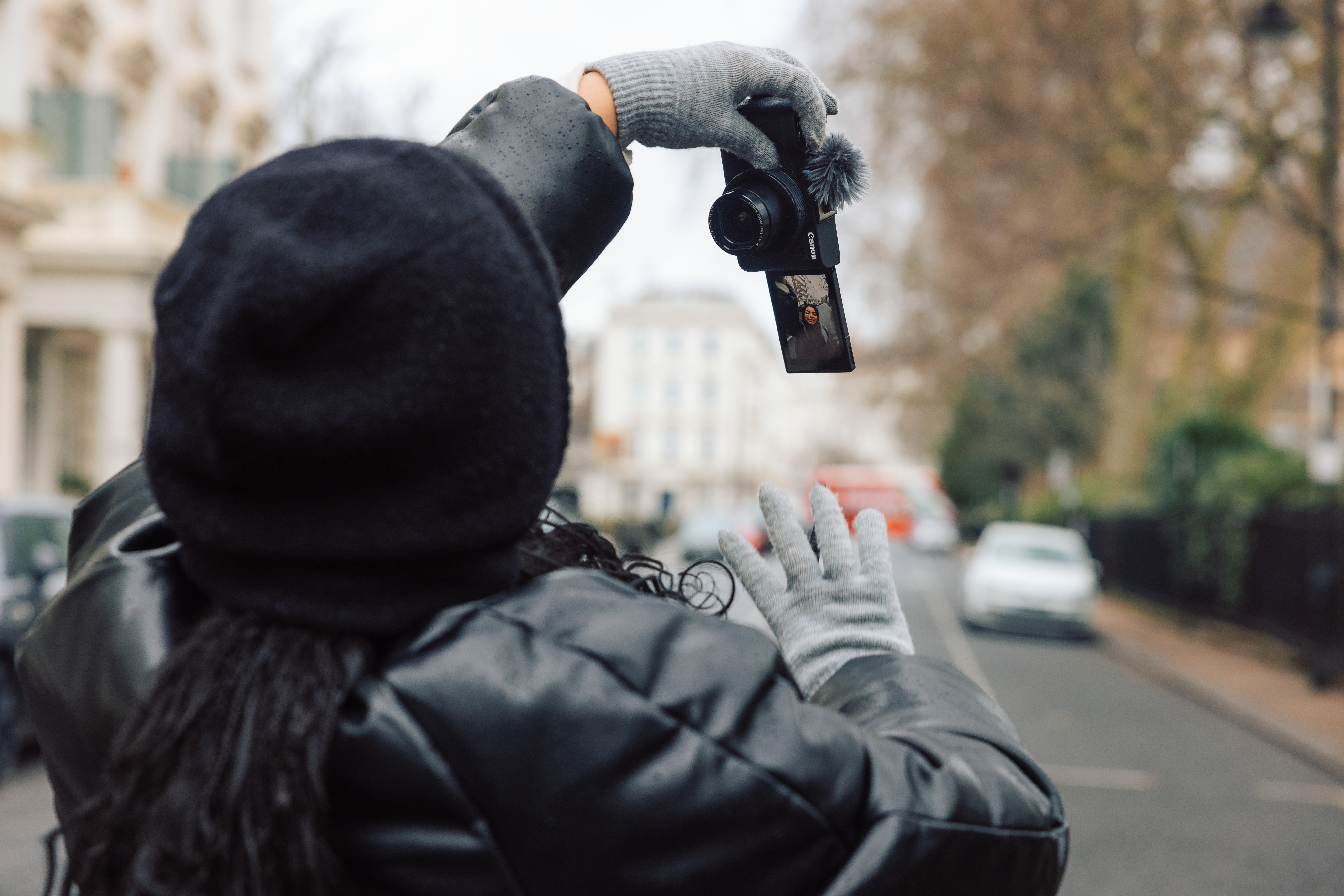
Whether you're recording a vlog or filming a tutorial, the vari-angle touchscreen makes it easy to monitor your framing while staying in the shot. Flip the screen towards you to check composition, focus and exposure before you hit record, helping you create polished videos with fewer retakes.
5. Build a better vlogging setup.
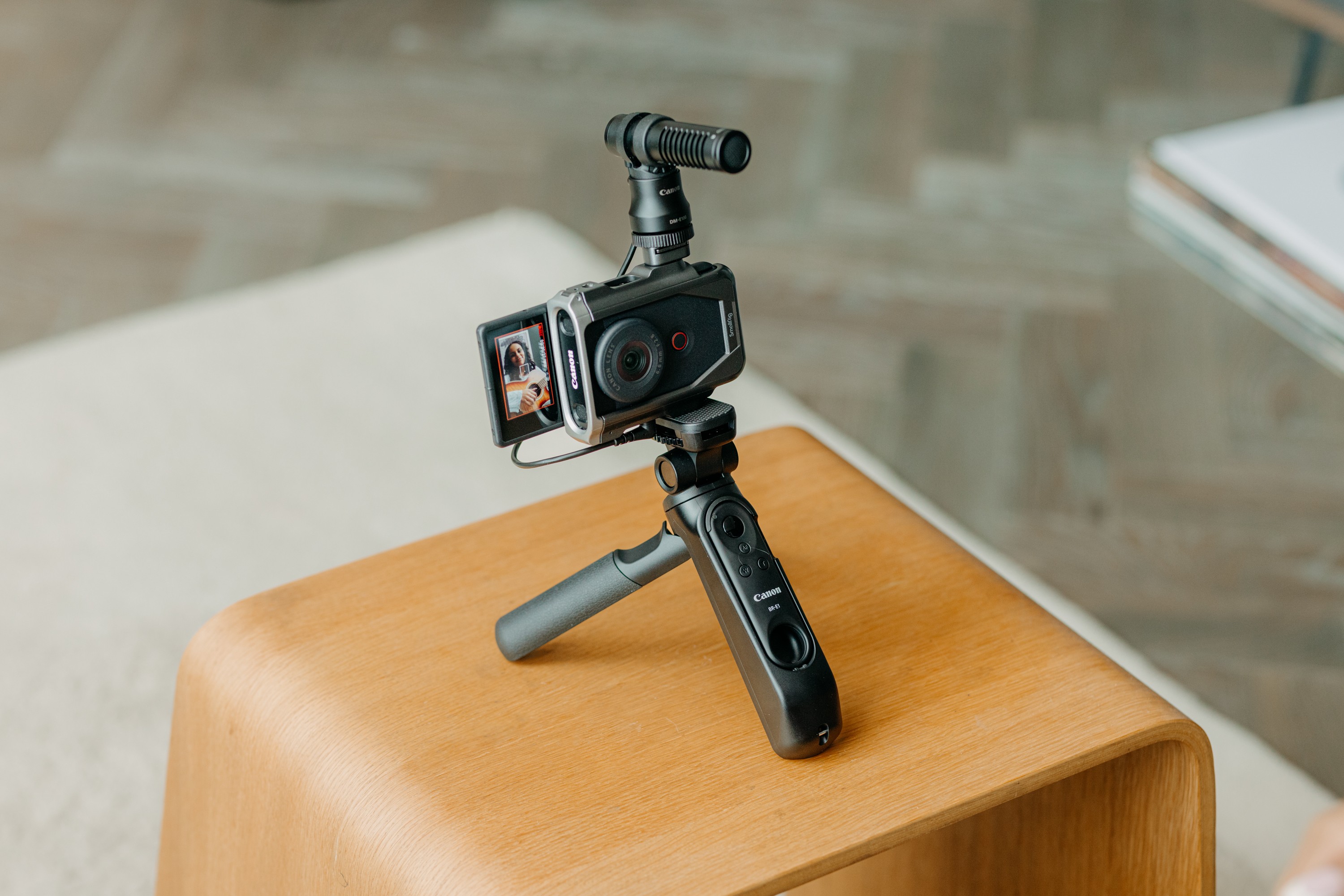
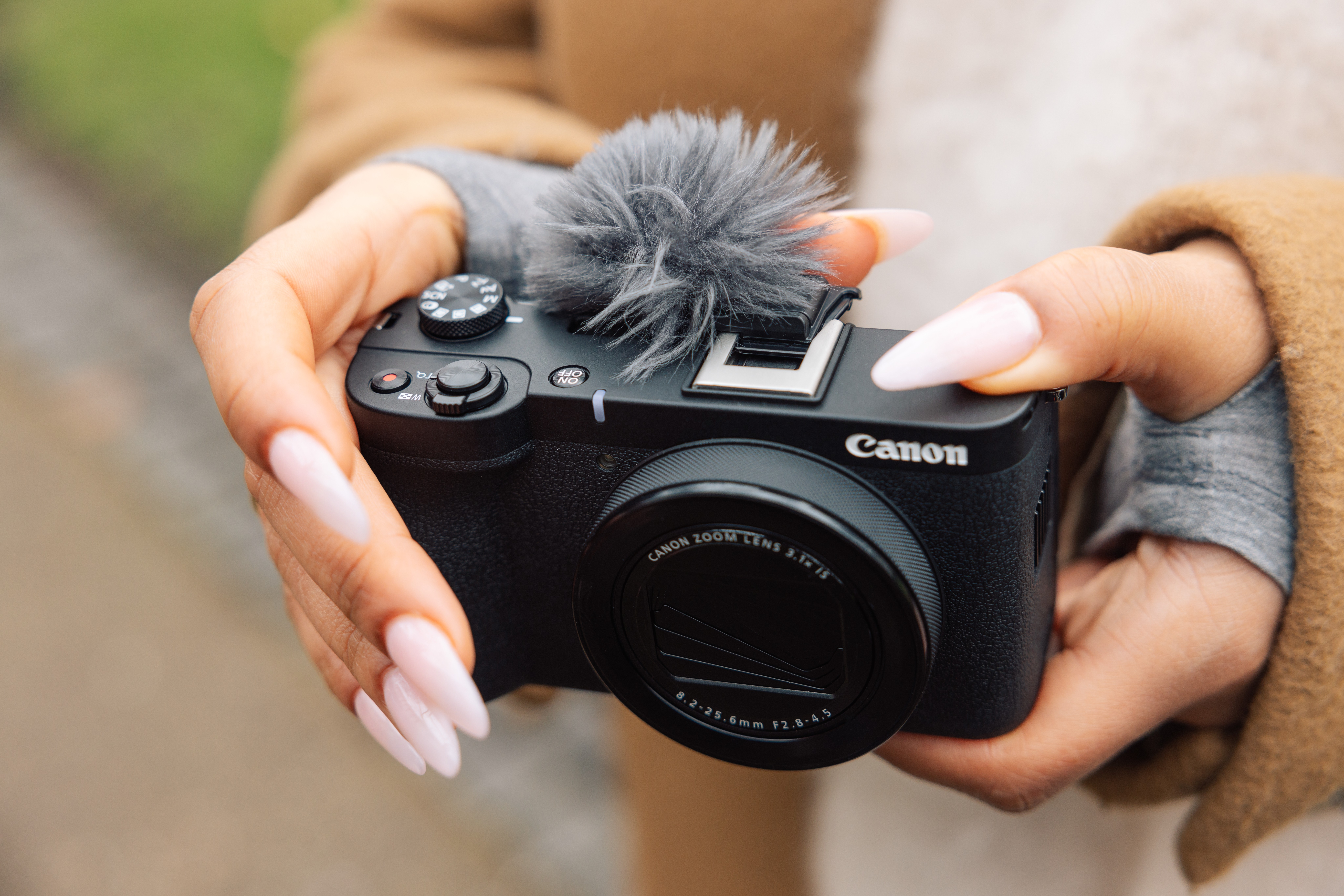
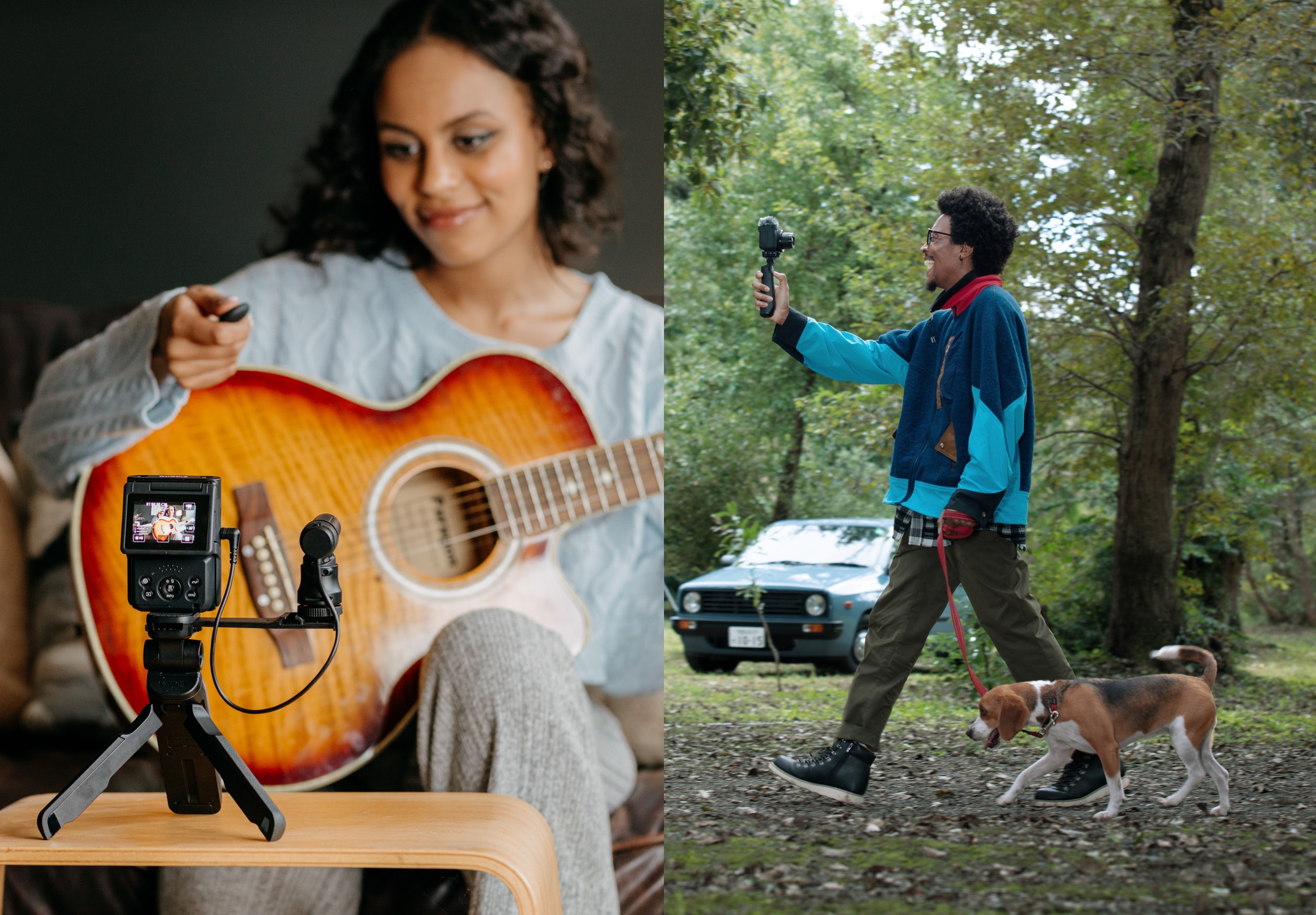
The PowerShot V1 pairs seamlessly with accessories that enhance your content. Mount the camera on the Canon HG-100TBR Tripod Grip for more stable handheld shooting and comfortable low-angle shots, then connect an external microphone via the 3.5mm microphone input for clearer, more professional audio.
1. Canon PowerShot V1 - 4K 30p vs 4K 60p: Which Mode to Use
4K 30p uses the full sensor with oversampling from 5.7K - this is your highest quality mode. Use it for establishing shots, interviews, and any moment where image quality is the priority. Use 4K 60p when you specifically want slow-motion in the edit. It applies a 1.4x crop, so the framing is tighter.
2. Let Movie Close-Up Mode work for you.
When filming product reviews, unboxing, or demos, bring the item slowly toward the lens. The camera will shift focus away from your face and onto the product automatically. Move it out of frame, and focus returns to you. Practice the movement - slow and unhurried gives the most professional result.
3. Canon Log 3 & LUTs - How to Colour Grade Your V1 Footage.
Canon Log 3 records a flat, desaturated image that preserves a wide dynamic range. It looks unfinished straight from camera but gives you far more control in post. Apply a LUT or grade manually in your editing software. For content you plan to post without editing, shoot in standard color mode - it looks great straight out of camera.
4. Use the zoom lens to build shot variety without moving.
For sitting or standing content, shoot one section at 17mm (wide, establishes your location and context), then zoom to 35-52mm for close-up moments or product focus. Cutting between these two framings in edit creates production variety from a single static position.
5. Monitor your audio during live streams and long recordings.
Plug headphones into the headphone jack during any live session or extended recording. You will hear exactly what your audience hears — including room noise, echo, or mic handling — and can adjust before it becomes a problem. Most creators only discover audio issues when watching back. Monitoring prevents that.
6. Canon Camera Connect App - Remote Control Your Vlogging Camera
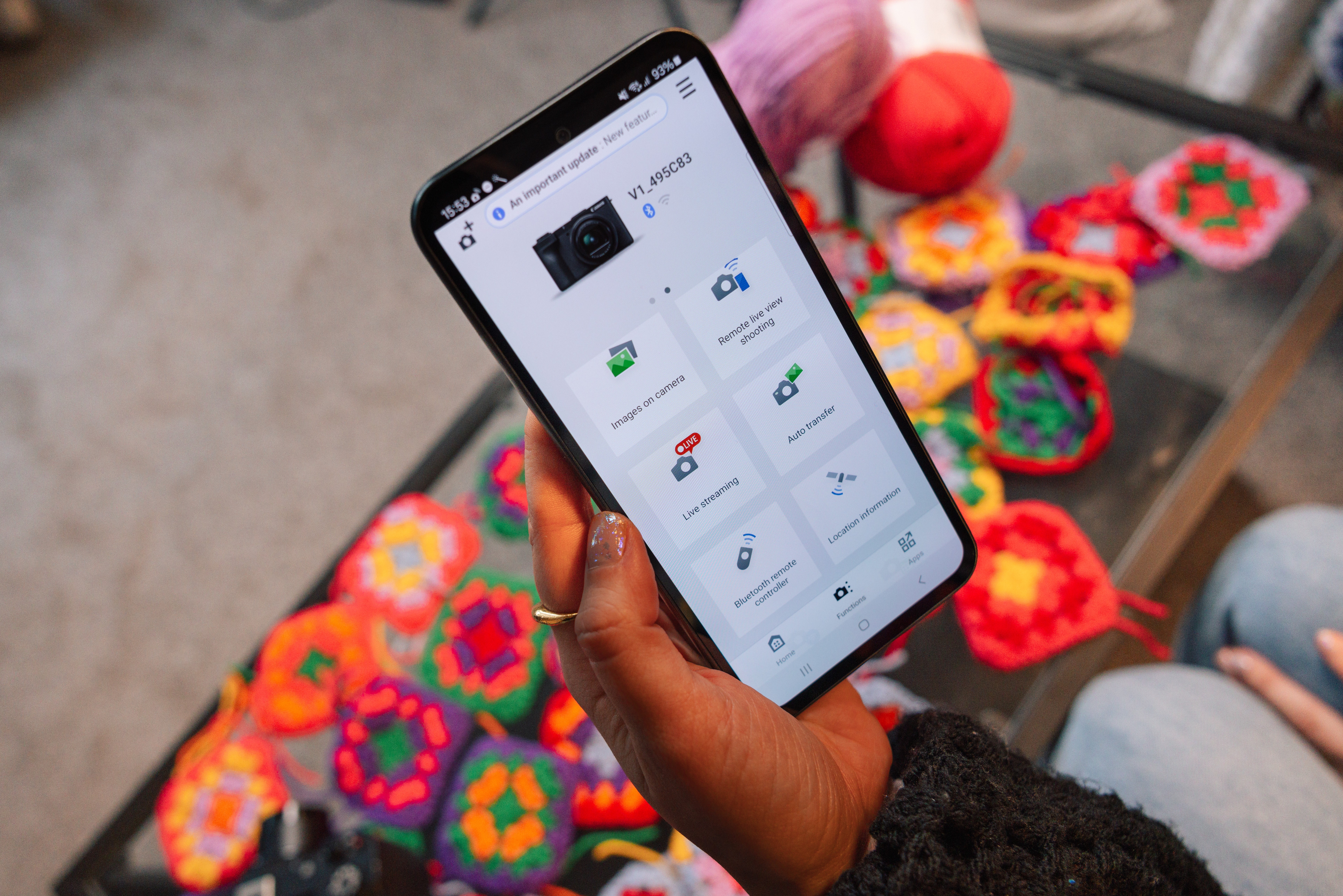
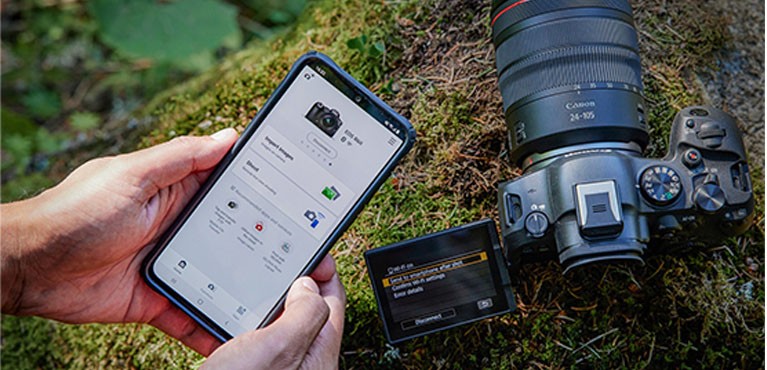
The Canon Camera Connect app works with both cameras and is free to download. It lets you remote-control either camera from your phone, use your smartphone as a wireless viewfinder, trigger the shutter remotely, transfer files wirelessly, and adjust settings without touching the camera. Genuinely useful for solo creators setting up self-directed shots.
.jpg)